
Overview
This article explains how to view the Onboarding status of an exam on the Proctortrack dashboard. You can check whether the onboarding has been Under Review, Approved, or Rejected, along with the onboarding expiration date.
Where can I check the Onboarding status?
You can check the Onboarding status directly from the Proctortrack dashboard after logging in through your LMS or test platform.
Steps to Check the Onboarding Status
Step 1: Log in to the LMS or Test Platform
Log in to your LMS or test platform using your registered credentials.
Step 2: Navigate to the Test List from Proctortrack Dashboard
Once logged in, click on the Test List tab from Proctortrack Dashboard.
Step 3: Locate and check the relevant Onboarding Test status
Locate and check the relevant Onboarding test from the Test List.
The onboarding status will be displayed on the dashboard. The status may appear as:
- Under Review – The onboarding submission is currently being reviewed.
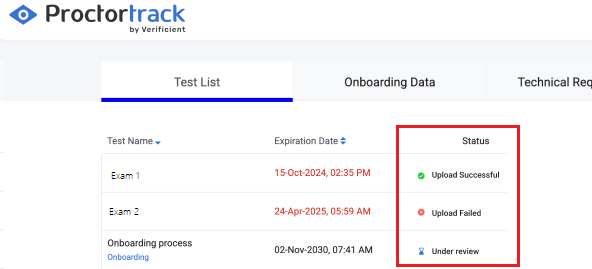
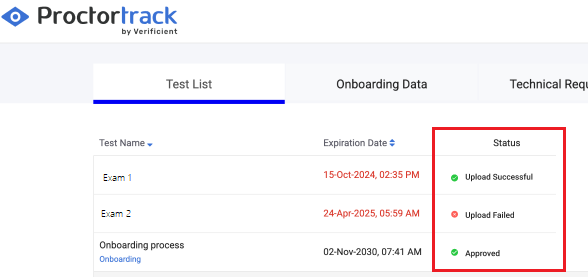
- Approved – The onboarding has been successfully reviewed and approved.
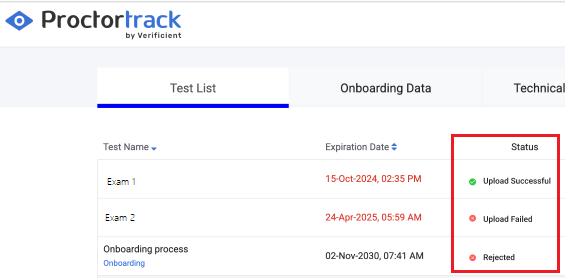
- Rejected – The onboarding submission has been rejected.
Step 4: Check Additional Onboarding Details
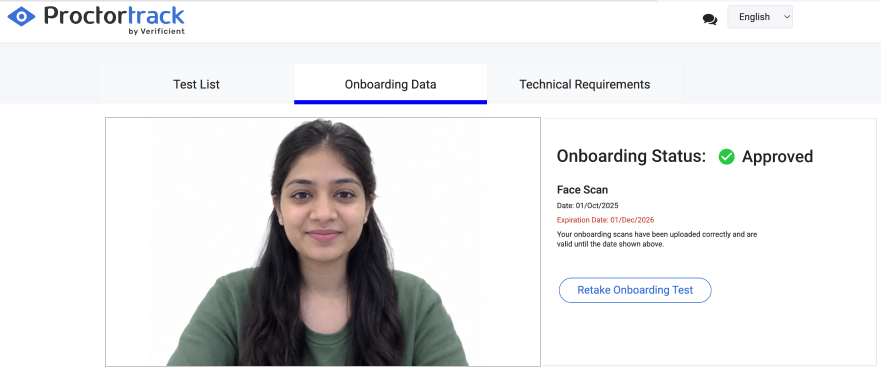
For additional information, navigate to the Onboarding Data tab.
Here, you can verify details such as:
- Onboarding Status
- Expiration Date
- Other available onboarding-related information
Quick Reference
| Location | Information Available |
|---|---|
| Test List | Onboarding test and current status |
| Onboarding Data | Onboarding status, expiration date, and additional details |
Important
If the onboarding status shows Under Review, please allow the review process to be completed before taking further action. If your onboarding is Rejected, please review the rejection reason and retake the onboarding carefully. Make sure to avoid repeating the same mistake during the scanning process. If you need help, please contact Support.