
What is this pop-up and why do I need to allow it?
When you launch Proctortrack, your browser may show a pop-up asking for Local Network Access.
This permission allows your browser to communicate with the Proctortrack desktop application installed on your computer so you can continue your exam.
✅ You must click “Allow” to proceed.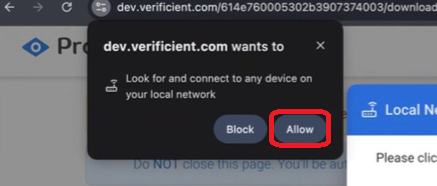
If you clicked “Block” by mistake
Your browser saves that selection, so the pop-up may not appear again when you return to the Proctortrack download/setup page.
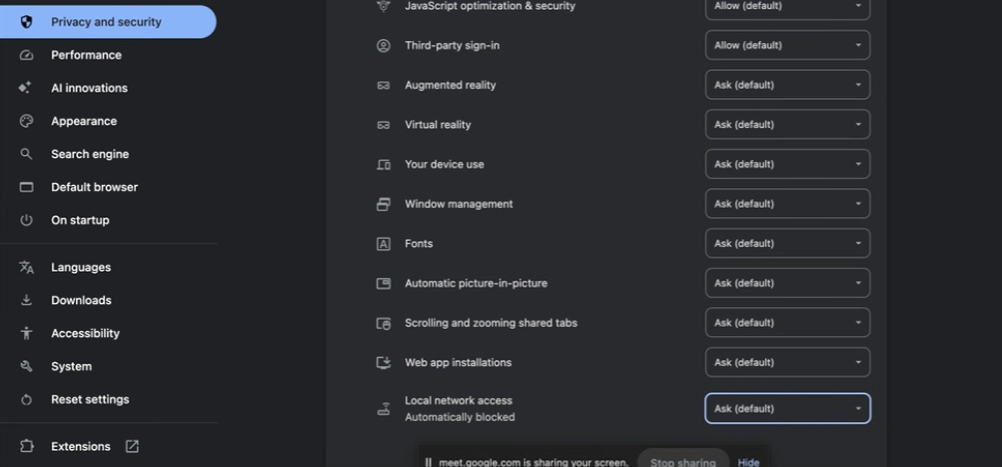
To fix this, you need to reset the permission back to Ask (default).
✅ Google Chrome: How to re-enable Local Network Access
Steps
Open Google Chrome
Click ⋮ (3 dots) in the top-right corner → Settings
Go to Privacy and security
Click Site settings
Scroll down → click Additional content settings
Click Local network access
Locate the Proctortrack site (example:
dev.verificient.comor your exam URL)Change the setting from Block → ✅ Ask (default)
Refresh the Proctortrack page
When the pop-up appears again, click ✅ Allow
? Reference link: https://docs.natterbox.com/docs/how-to-reset-site-settings-in-chrome
✅ Microsoft Edge: How to re-enable Local Network Access
Steps
Open Microsoft Edge
Click ⋯ (3 dots) in the top-right corner → Settings
Go to Cookies and site permissions
Scroll down and click Additional permissions
Click Local network access
Find the Proctortrack site (example:
dev.verificient.comor your exam URL)Change the setting from Block → ✅ Ask (default)
Refresh the Proctortrack page
When the pop-up appears again, click ✅ Allow
Alternative (Works for both Chrome and Edge): Reset permissions from the address bar
If you don’t see the pop-up even after changing settings:
Open the Proctortrack page in your browser
Click the ? lock icon (left side of the address bar)
Click Site permissions / Site settings
Click Reset permissions
Refresh the page and click ✅ Allow when prompted
After enabling it, what should I do?
Once your browser permission is set to Ask (default):
Refresh the Proctortrack setup page
Click Allow on the Local Network Access pop-up
Continue your exam setup normally
Still not working?
Try these quick fixes:
Close and reopen the browser
Ensure the Proctortrack desktop app is installed and running
Restart your computer
Try again in a new browser window