
Q. Why am I seeing an error message on the Proctortrack mobile app?
This issue usually occurs due to corrupted app data, cached files, or a temporary app glitch. Clearing the app’s cache and storage often resolves the problem.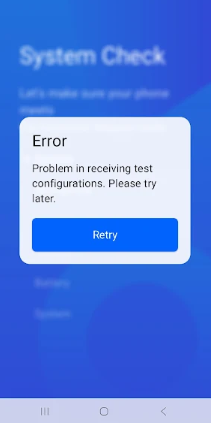
For Android Users
Q. How do I clear Proctortrack storage & cache on Android?
Follow the steps below:
Open Settings on your Android phone
Go to Apps or Apps & notifications
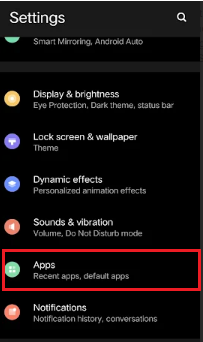
Tap See all apps (if required)

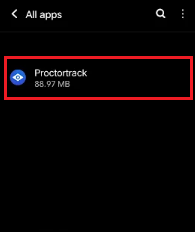
Find and select Proctortrack
Tap Storage or Storage & cache
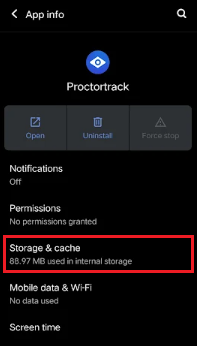
Tap Clear Cache
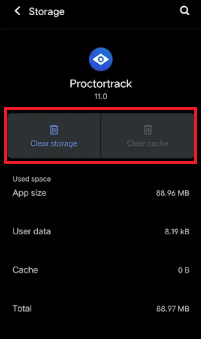
Tap Clear Storage or Clear Data
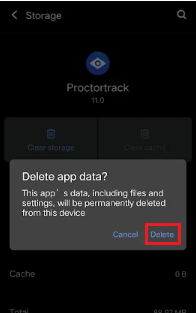
Tap Delete when prompted
Note: Clearing storage/data will reset the app, and you will need to log in again.
For iOS (iPhone) Users
Q. How do I clear Proctortrack storage & cache on iOS?
iOS does not provide a direct “Clear Cache” option. Use the steps below:
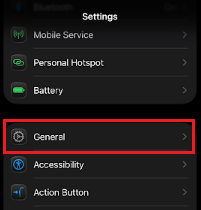
Go to Settings → General
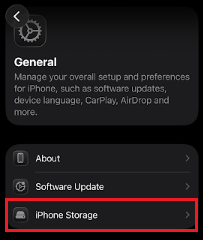
Tap iPhone Storage
Scroll down and select Proctortrack
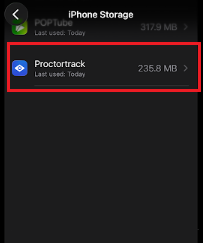
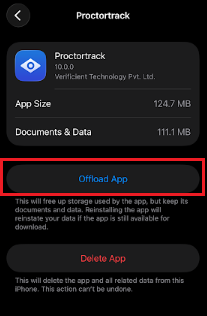
Tap Offload App
This removes the app while clearing cache and stored data
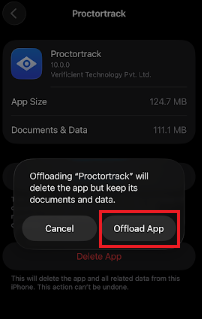
Tap Offload App again to confirm
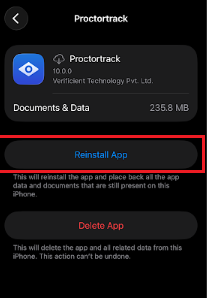
Reinstall the app from the App Store
Restart your iPhone (optional but recommended)